
Monitor Stand Organizer: How to Raise Your Screen and Clear Your Desk
How to choose and set up a monitor stand organizer: the right screen height and distance from OSHA and CCOHS guidance, what to store under the stand, cable tips and dual-monitor layouts.
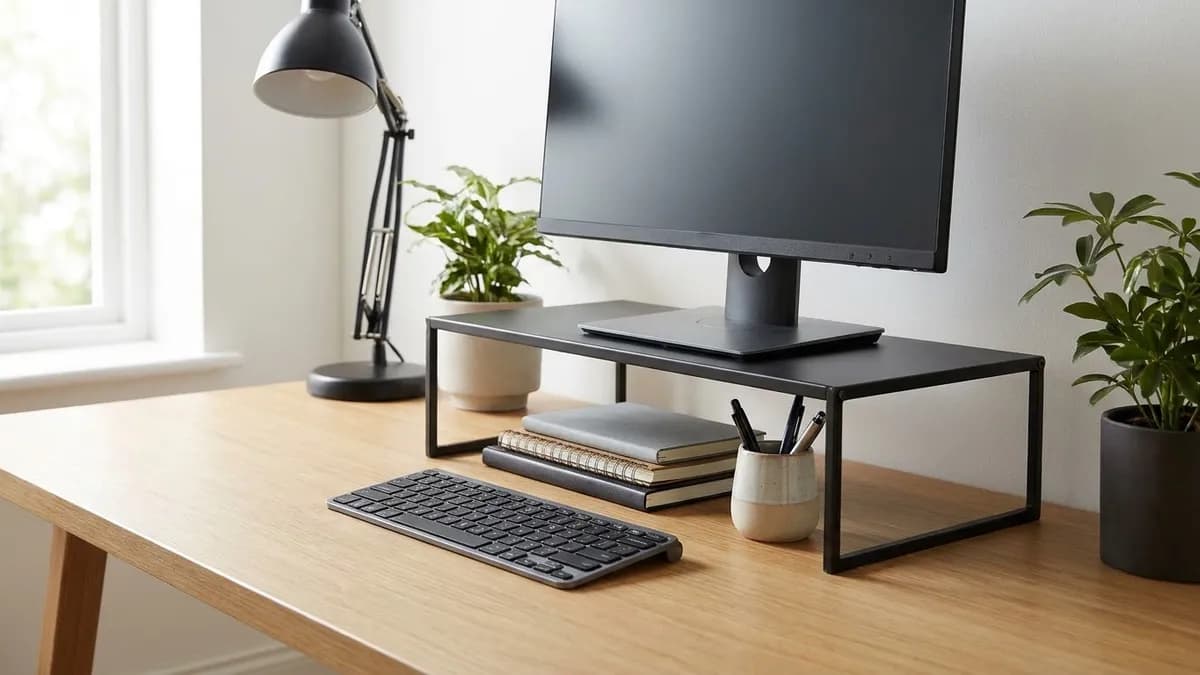
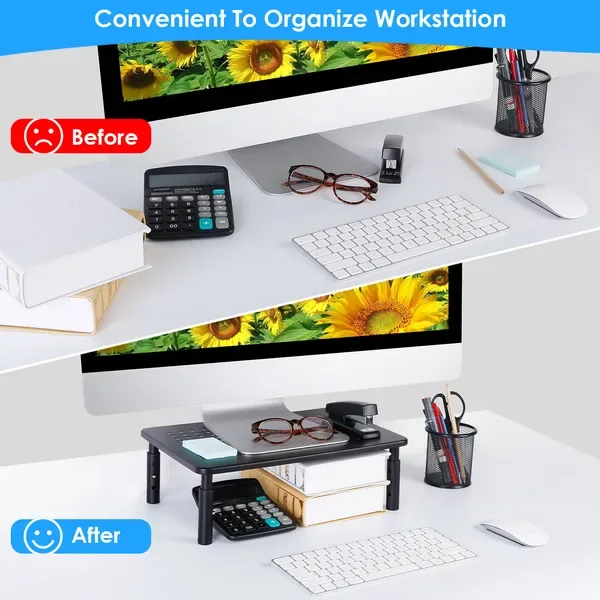
A monitor stand organizer does two jobs at once: it lifts your screen closer to a comfortable viewing height and it turns the dead space under the screen into storage. The simplest setup is a sturdy riser placed directly in front of you, with the top of the screen at or slightly below eye level, a keyboard or notebooks that slide underneath when you are not using them, and small trays or cups beside it for the items you reach for every day.
This guide explains how to choose a monitor stand organizer, how high and how far away the screen should sit according to published ergonomic guidance, what to store under and around the stand, and how to keep cables and small supplies from creeping back onto the desk. If your whole desk needs a reset first, start with our guide on how to organize your desk, then come back to fine-tune the screen area.
Monitor Stand Organizer Types at a Glance
Monitor stand organizers come in a few common styles. The right one depends on how much height you need, how wide your desk is and what you want to store. Use this table to compare the main types before you buy.
| Type | What it does | Best for | Watch out for |
|---|---|---|---|
| Flat riser (single shelf) | Lifts the monitor and leaves an open bay underneath | Notebooks, a keyboard, a laptop stand | Fixed height may be too low or too high |
| Adjustable-leg riser | Lets you choose between preset heights | Sharing a desk or switching monitors | Check the load rating against your monitor's weight |
| Riser with drawers | Adds one or more pull-out drawers under the shelf | Pens, cables, sticky notes, chargers | Drawers reduce the open space for a keyboard |
| Riser with side compartments | Built-in slots for phones, pens or tablets | Small desks without room for extra organizers | Compartments are often shallow |
| Dual-monitor riser (long shelf) | One wide shelf for two screens | Two equal-use monitors | Needs a deep, wide desk |
| Monitor arm with tray | Clamps to the desk and frees the surface entirely | Very small desks | Desk edge must suit a clamp |
A riser is not the right answer for everyone. If your monitor already has a height-adjustable base that reaches the right level, adding a riser can push the screen too high. Measure first, then decide.
How High Should a Monitor Stand Be?
The height of the stand matters more than its style. The OSHA workstation guidance reproduced by Engage PEO says the top of the monitor should be at or slightly below eye level, and that the center of the screen should normally sit 15 to 20 degrees below horizontal eye level. The Canadian Centre for Occupational Health and Safety (CCOHS) gives similar advice, describing a screen center at about 15 degrees, or slightly lower, below the horizontal line.
To find your target height, sit in your usual chair with your feet supported and look straight ahead. Note where your eyes land on the wall behind your monitor. The top edge of the screen should sit at or just below that point. Measure the gap between the top of the screen in its current position and the height it needs to reach. That gap is roughly the riser height you need.
A few practical notes from the same guidance:
- Bifocal and progressive lens wearers often look through the bottom of their lenses. OSHA notes that these users may need to lower the monitor below the usual recommendation, or use single-vision lenses designed for computer work. CCOHS also says people with multifocal lenses may find a slightly lower screen easier.
- Tall or portrait screens should not have their top edge above eye level, according to CCOHS.
- Tilt the screen so it is roughly perpendicular to your line of sight. OSHA describes this as usually no more than 10 to 20 degrees of tilt, and warns that tilting the screen back can create glare from ceiling lights.
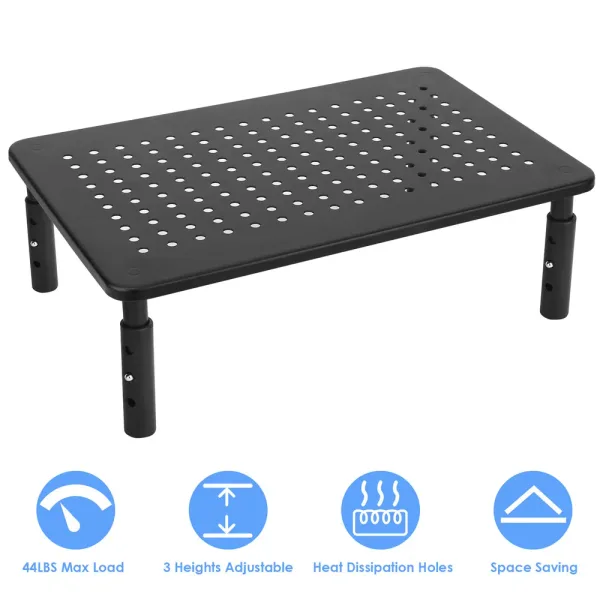
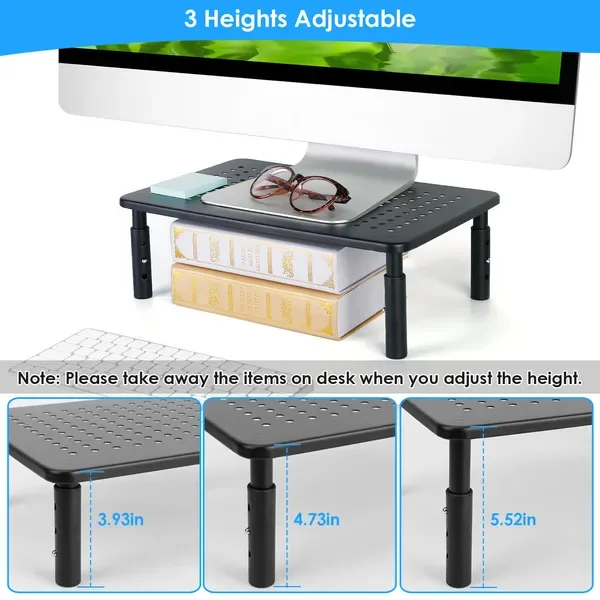
An adjustable riser gives you room to correct a guess. The Sesoris monitor riser, for example, has legs that set the platform at 3.93, 4.73 or 5.52 inches, carries up to 44 pounds and measures 14.37 x 9.05 inches at the top, so you can try one height for a week and change it if your neck or eyes tell you to.
How Far Away Should the Monitor Be?
Distance is the second half of good placement. OSHA lists a preferred viewing distance of 20 to 40 inches (50 to 100 cm) from your eyes to the screen, with the quick tip to put the monitor directly in front of you and at least 20 inches away. CCOHS suggests that an arm's length is usually a good estimate, and adds that if text is hard to read at that distance, it is better to increase the font size than to pull the screen closer.
This affects how you organize the desk. A monitor stand that is set too close to the front edge leaves no room for the keyboard, so people push the keyboard onto the stand's lower bay and end up typing at an awkward reach. Before you fill the space under the stand, set the screen distance first, then see how much desk depth is left.
| Measurement | Guidance | Source |
|---|---|---|
| Top of screen | At or slightly below eye level | OSHA |
| Center of screen | About 15 to 20 degrees below horizontal eye level | OSHA, CCOHS |
| Viewing distance | 20 to 40 inches (50 to 100 cm), at least 20 inches | OSHA |
| Rule of thumb for distance | About an arm's length | CCOHS |
| Screen tilt | Perpendicular to line of sight, usually 10 to 20 degrees or less | OSHA |
| Window placement | Monitor perpendicular to the window | OSHA |
What to Store Under a Monitor Stand
The open bay under a riser is the most valuable storage on the desk because it sits right in front of you but stays out of your line of sight. Treat it as a parking spot for things you use daily but not constantly.
Good candidates for the space under the stand:
- Your keyboard when you need the desk surface for writing, sketching or eating lunch. Slide it in, and the desk is clear in a second.
- One or two notebooks that you use every day. Keep the stack low so you can pull out the top one without lifting the monitor.
- A shallow tray for sticky notes, a pen and a phone stand.
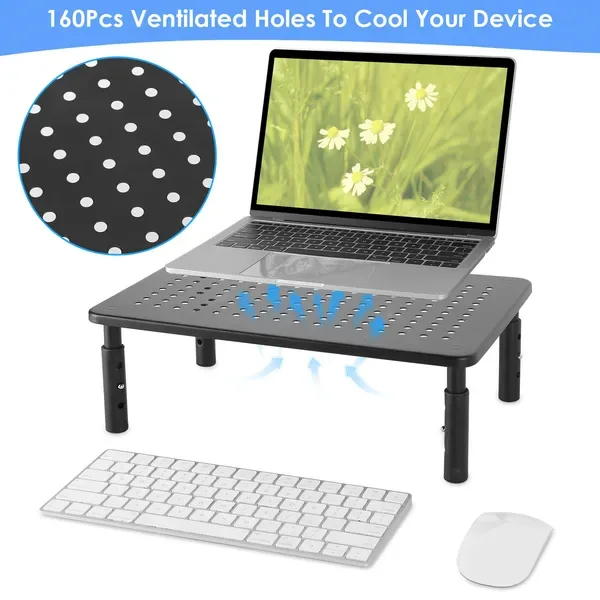
- A laptop that you close and connect to the monitor, if the bay is tall enough for air to circulate around it.
- A small charging spot for earbuds or a phone, with the cable routed behind the stand.
What not to store there: loose papers that slide out every time you reach in, anything you need to read while it sits in place, and heavy piles that press against the legs. If paperwork is the real problem, a vertical file or wall rail works better. Our guide to home office wall organization systems covers pegboards, rails and shelves that move paper off the desk entirely.
Organizers That Work Beside the Stand
A monitor stand handles the center of the desk. The two sides are where daily clutter usually piles up. Pair the stand with one compact organizer on your writing-hand side and keep the other side mostly clear for a drink, a phone or a mouse.
- A mesh desk organizer with a drawer holds pens, scissors, a stapler and a phone in one footprint. Our 9-compartment mesh desk organizer measures 8.66 x 4.33 x 4.13 inches, so it fits beside most risers without crowding the keyboard.
- A round acrylic caddy is useful if you prefer to see what is inside. The round acrylic desk organizer has four compartments and a carry handle, so you can lift it off the desk when you need the space.
- Drawer trays keep the overflow off the surface. If your desk has a drawer, a set of mesh drawer organizer trays gives backup pens, chargers and clips a fixed home.
For more ideas on the items themselves, see our roundup of the best desk organizer accessories and the stationery organizer ideas guide.
Keep Cables From Undoing the Setup
A raised monitor makes cables more visible, because the power and video cords now drop from a higher point. A few minutes of cable work keeps the stand looking tidy and stops cords from pulling items off the shelf.
- Route cables behind the riser, not through the storage bay. Cables that cross the bay catch on notebooks and trays every time you slide something in.
- Bundle the monitor's cables together with a reusable hook-and-loop strap so they move as one.
- Add a cable tray or clips along the back edge of the desk and run the bundle to a power strip mounted under the desk.
- Leave a little slack at the monitor so you can change the riser height or tilt the screen without unplugging anything.
- Label both ends of any cable you unplug often, such as a laptop charger or docking cable.
Our desk cable management ideas guide goes deeper on trays, sleeves and under-desk mounting, and cable management ideas for home offices covers the wall and floor side of the job.
Dual Monitors and Laptop Setups
Two screens change how you plan the stand. CCOHS describes two arrangements. If you use both monitors equally, place them in front of you with the edges touching and angle them into a gentle semicircle. If you use one monitor more, put that one directly in front of you like a single monitor and set the second to one side at an angle. In both cases CCOHS says the screens should be about an arm's length away and at the same height.
That means two separate risers need to match, or one long riser needs to carry both screens. If your monitors are different models, measure the height of each screen's top edge rather than the height of the stand. A matching pair of adjustable risers can make up the difference between two bases.
Laptops are a different case. A laptop screen on the desk usually sits low, so many people raise it on a stand and use a separate keyboard and mouse. The OSHA guidance on monitor height still applies to the laptop screen once it is raised. If the laptop is your second screen beside a main monitor, match its top edge to the main screen as closely as you can, then store its charger in the stand's bay or a drawer tray. For a full layout plan, see our desk setup ideas and work from home desk setup ideas.
Step-by-Step: Set Up a Monitor Stand Organizer
Use this order to avoid redoing the setup. Plan on an unhurried session for a single-monitor desk.
- Clear the desk completely. Put everything in a box so you start with an empty surface.
- Place the chair and check your posture. Sit as you normally work, with your feet supported.
- Position the riser directly in front of you, about an arm's length from your eyes once the monitor is on it.
- Set the height. Put the monitor on the riser and check that the top edge is at or slightly below eye level. Adjust the legs or swap risers if it is not.
- Tilt the screen so it faces your line of sight, and check for glare from windows or ceiling lights.
- Route and bundle cables behind the riser before you put anything underneath.
- Load the storage bay with the keyboard, daily notebooks or a tray. Leave the front edge clear so items slide out easily.
- Add one side organizer for pens and small supplies on your writing-hand side.
- Return only what you used last week. Everything else goes into a drawer or a supply shelf.
If you work in a shared room or a small apartment, our small home office organization ideas guide has layouts for compact desks.
Common Mistakes With Monitor Stands
- Stacking books under the monitor instead of using a stable riser. Books shift and are hard to level. A riser with a solid top and non-slip feet is a steadier base for a heavy screen.
- Ignoring the load rating. Check your monitor's weight on the manufacturer's spec sheet and compare it with the riser's rated capacity.
- Raising the screen too high. A screen above eye level makes you tilt your head back. Lower it if you notice that.
- Filling the bay to the top. A packed bay blocks airflow for a closed laptop and makes it hard to slide the keyboard in.
- Letting the side organizer grow. Keep one organizer per side at most. Overflow goes into a drawer.
Frequently Asked Questions
What is a monitor stand organizer?
It is a raised platform that lifts a computer monitor and creates storage underneath or beside it. Some models are a plain shelf, while others add drawers, side compartments or phone slots. The goal is to bring the screen closer to a comfortable height and use the space under it for daily items.
How high should my monitor stand be?
High enough that the top of the screen sits at or slightly below your eye level when you sit in your usual posture. OSHA also says the center of the screen should normally be 15 to 20 degrees below horizontal eye level. Measure from your eye line to the current top edge to estimate the riser height you need.
How far away should a monitor be from my eyes?
OSHA lists a preferred viewing distance of 20 to 40 inches (50 to 100 cm) and recommends at least 20 inches. CCOHS suggests about an arm's length. If text is hard to read at that distance, increase the font size rather than moving the screen closer.
Can I put my keyboard under a monitor stand?
Yes, if the bay is tall and deep enough. Sliding the keyboard under the stand is one of the easiest ways to clear the desk for writing or eating. Keep cables routed behind the stand so they do not catch on the keyboard.
Is a monitor riser good for bifocal wearers?
Bifocal and progressive lens wearers often need a lower screen, not a higher one, because they look through the bottom of their lenses. OSHA suggests lowering the monitor below the usual recommendation or using single-vision lenses designed for computer work. An adjustable riser lets you pick a lower setting.
How do I set up two monitors on stands?
CCOHS recommends placing equally used monitors side by side with the edges touching, angled in a semicircle. If you use one more, put it directly in front of you and the other to one side. Both should be about an arm's length away and at the same height, so use matching or adjustable risers.
Will a monitor stand hold a heavy monitor?
Only if its weight rating is higher than the monitor's weight. Check both numbers on the spec sheets. For example, the Sesoris monitor riser is rated for 44 pounds. Spread the load evenly and avoid stacking heavy items on top of the screen base.
What should I avoid storing under a monitor riser?
Avoid loose papers, heavy piles that press against the legs and anything you need to read while it is stored. Keep the bay for items that slide in and out easily, such as a keyboard, notebooks or a shallow tray.
Final Thoughts
A good monitor stand organizer is a small change with a large effect on the desk. Set the screen at the right height and distance first, then use the bay under it for the few items you reach for every day, keep cables behind the stand and limit yourself to one side organizer. For more ways to keep the rest of the room in order, browse our office organization ideas and the home office desk organization guide.

Liked this guide?
Get new organizing guides and the occasional new product by email. No spam, unsubscribe anytime.
Related articles



Explore more articles
- How to Plan Wall to Wall Shelf Ideas That Actually Work: A Practical 2026 Guide
- 30+ Best Storage Ideas for Small Space: Maximize Every Inch of Your Home in 2026
- Kitchen Food Storage Containers: The Ultimate 2026 Guide to Fresh, Organized Kitchens
- Top Rated Glass Food Storage Containers: Ultimate Buyer's Guide for 2026
- Best Storage Solutions in Garage: 30+ Smart Ideas to Transform Your Space in 2026
- 30+ Best Organization Pantry Ideas to Transform Your Kitchen Storage in 2026
- Storage Containers for Dog Food: Complete 2026 Guide to Keeping Your Pet's Kibble Fresh
- Pyrex Glass Food Storage Containers: The Complete 2026 Guide to Safe, Durable Kitchen Storage